

Launcher
The xTux Launcher (xtux-launcher) is the graphical front end of xTux. Browse your installed games,
start them from the library and explore the Store catalog.
xtux-launcherScreenshots
Section titled “Screenshots”Account details and personal paths are redacted in these screenshots.
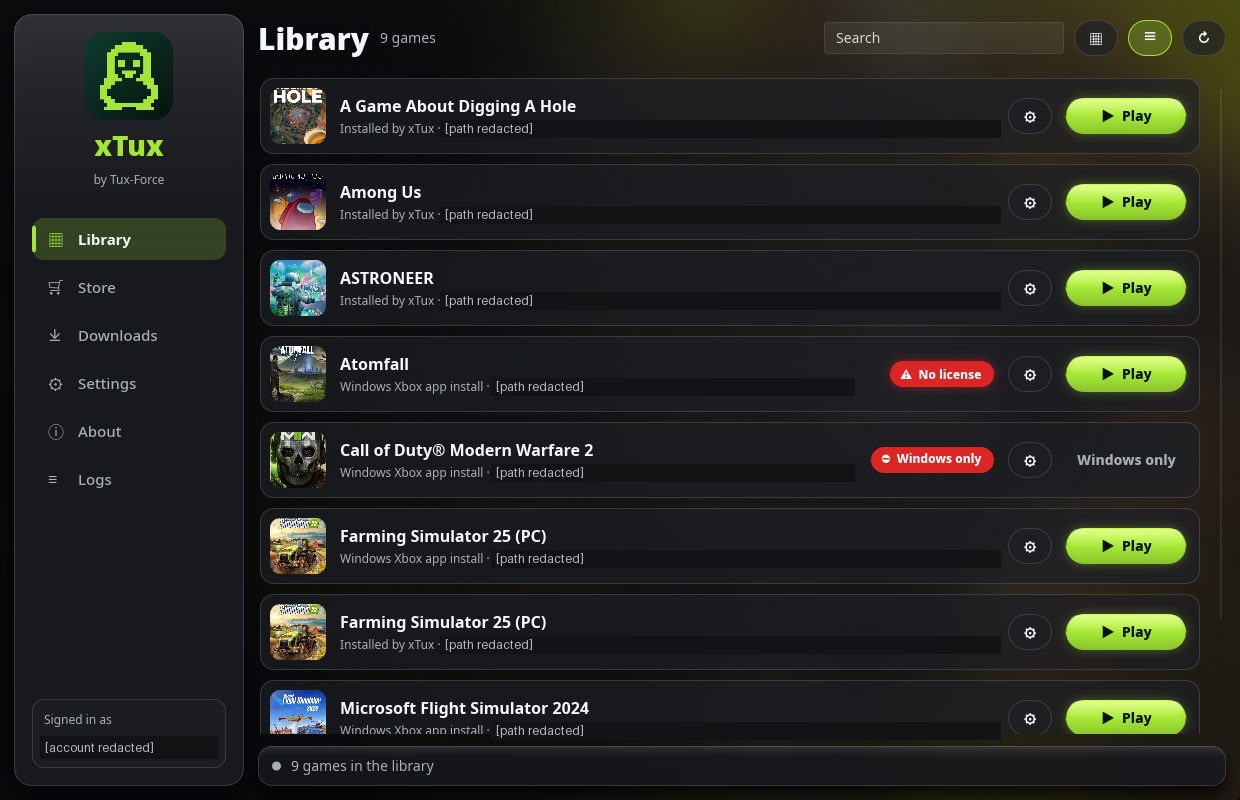
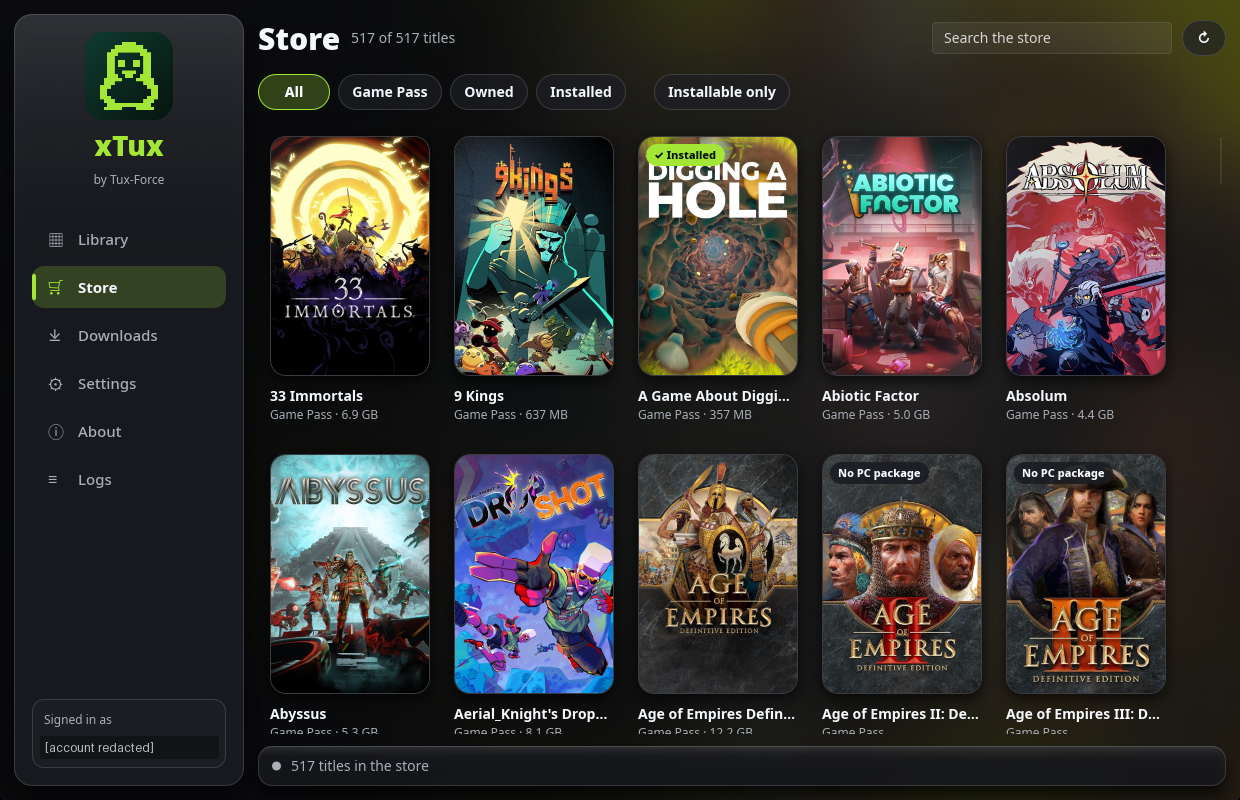
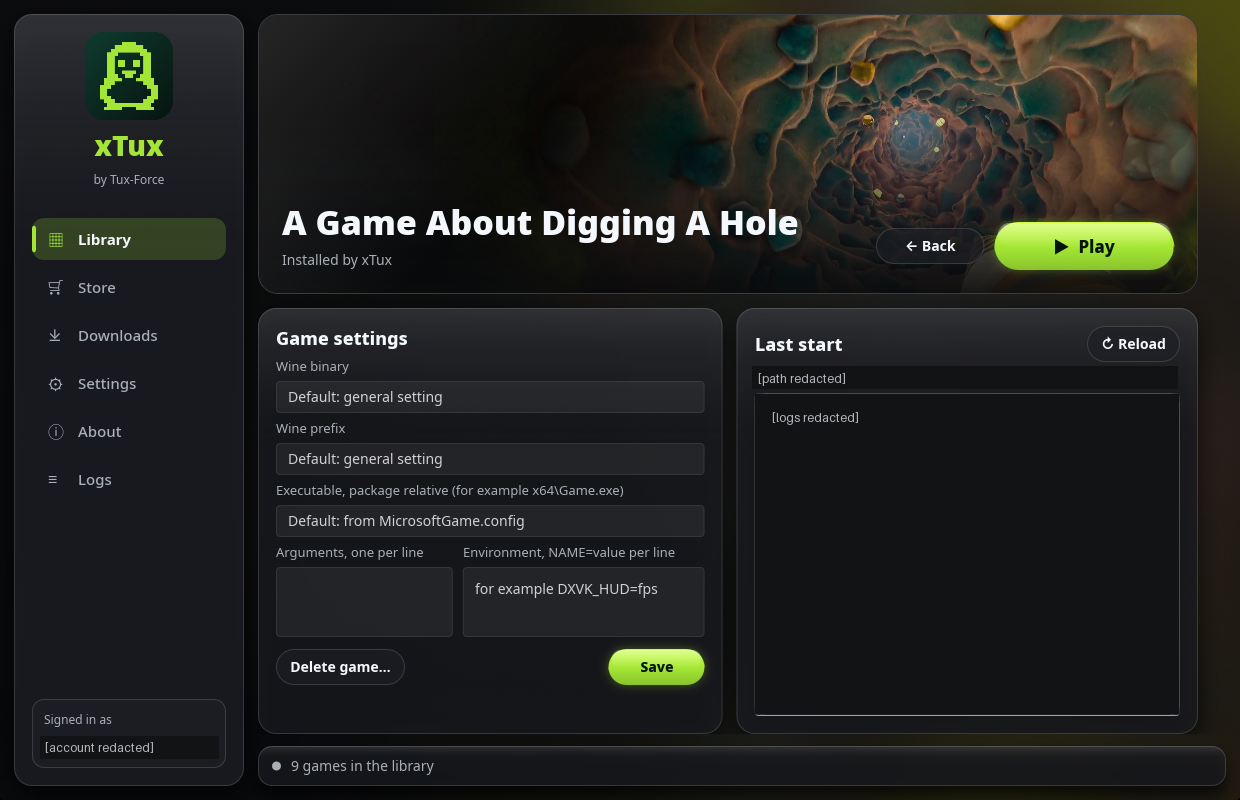
1 / 3 — Library
Personal paths and runtime logs are also redacted in the game detail view. Click a screenshot to open the enlarged overlay; use the arrows or swipe to browse, and Escape or the close button to return.
Download branded social-media versions of all three views.
- Library: installed games from the configured library folders, as a cover grid or list. Search, refresh, Play/Stop controls, install-source labels, license errors and file-based anti-cheat indicators are available.
- Game details: artwork, Play/Stop, the last launch log and per-game Wine binary, prefix, executable, arguments and environment variables. Empty settings inherit the global defaults; Save persists changes.
- Store: browse PC Game Pass and owned titles; filter by Game Pass, Owned, Installed or Installable only. A title page shows artwork, description, package information and a screenshot gallery. A catalog listing is not proof that your account is entitled to play a title; Microsoft checks the license at launch.
- Downloads: choose a configured library folder from a Store title and add an install to the service’s queue. View progress, network/disk activity, pause, resume, reorder and remove jobs, or clear finished entries. The service processes one queued install at a time and saves the queue across restarts.
- Settings: global Wine binary, shared prefix and library folders, plus theme, accent, background, app icon, online artwork and the optional title-name-based anti-cheat estimate for Store titles.
- Logs: view and reload the service log. The game detail page shows the last game log separately.
- About: version, license, project links and third-party licenses.
- Sign in: opens Microsoft’s sign-in window in a separate helper process.
The status bar shows game starts, exits and errors. Closing the launcher does not stop the service’s queued downloads.
Installing and deleting games
Section titled “Installing and deleting games”Open a Store title, choose Install, select a library folder and choose Add to downloads. Titles without a supported PC package cannot be installed. A Store title with a local install offers Play.
Delete game… on an installed game’s page deletes its entire game folder after confirmation. This also applies to Windows Xbox app installs; Windows will need to repair or reinstall them afterwards. Local saves inside that folder are deleted too. This action does not simply hide a game from the library.
Update checks and verification of an already installed game are not available in the launcher yet. Flatpak
packaging and automatic first-launch prefix setup remain planned. Prepare each prefix using
xtux-cli prefix init before using it.
Settings and launch options
Section titled “Settings and launch options”Global and per-game settings share $XDG_CONFIG_HOME/xtux/settings.toml (normally ~/.config/xtux/settings.toml)
with the CLI. Per-game settings are keyed by the game folder, not the Store ID. A shared prefix is the default;
choose a separate prefix in a game’s settings if needed and initialize it first.
xtux-launcher --page storextux-launcher --page settingsxtux-launcher --game "Farming Simulator 25 (PC)"xtux-launcher --play "Farming Simulator 25 (PC)"--page accepts library, store, settings, about and logs. --game opens an installed game’s page;
--play starts it. If a game is installed more than once, use its folder path.
Artwork and anti-cheat
Section titled “Artwork and anti-cheat”Online artwork uses the public Microsoft Store catalog and caches images under ~/.cache/xtux/art.
Choose Only from the game folder to disable new online artwork loads. Installed games are checked for
anti-cheat files. Store title-name guesses are optional, off by default and unverified per title; they are not
community compatibility reports.
The service log is normally ~/.local/state/xtux/service.log; game logs are under ~/.local/state/xtux/logs/.
The queue is stored in ~/.local/state/xtux/downloads.json. These paths follow XDG_STATE_HOME when set.
How it works
Section titled “How it works”The launcher does not contain the game logic itself. It talks to xtux-service, the same background service
xtux-cli uses, and starts it when needed. That way the command line and the launcher always behave the same. See
Architecture.